Tools
Selection
Three ways to define a working area — a rectangular marquee, a freeform lasso, or a click by color — that all feed the same floating transform frame and the same add/subtract modifier keys.
← Interface overviewThe tools 3
Shift always adds to the current selection, Ctrl (Cmd on Mac) subtracts; a plain drag replaces it.

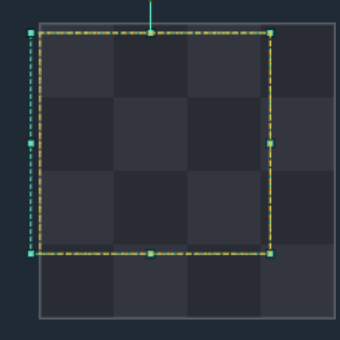
Rectangular area (mint frame + gold pixel outline). Drag inside to move, drag a handle to resize/rotate, arrow keys nudge by 1px.
 hover to play
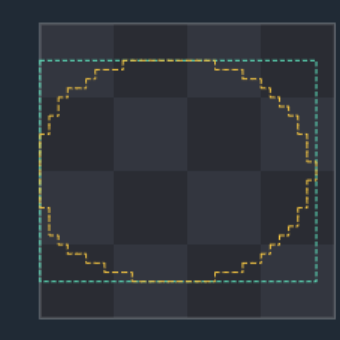
A freeform area following the drag path; the boundary closes automatically on release. The same move/resize/rotate frame works right away, without switching to Select.
 hover to play
Selects pixels by the clicked color. A dashed gold preview shows the match while hovering, before you commit with a click. Clicking a transparent pixel is ignored.
Select/move: the transform frame
All three tools hand off into this same floating frame once a selection exists — shown here for a plain rectangle. The dashed mint square is the rigid transform frame; the dashed gold line traces the actual selected pixels. For a rectangular marquee the two coincide — a rotated or lasso-shaped selection is where they visibly diverge. While you move or transform, the pixels stay on their layer (layers above still cover them); only the mint frame and gold outline sit on top.
Drag the gold dot to rotate freely; hold Shift to snap to 15° steps.
Resizes one axis. Click it without dragging to flip the selection across that axis instead.
Resizes both axes at once; hold Shift to keep the original aspect ratio.
Mint frame = rigid bounding box; gold dashed line = the actual pixel mask. They split apart once the frame is rotated or the selection isn't a plain rectangle.
Drag to move. Hold Alt while dragging to flip horizontally, Ctrl to flip vertically, instead of moving.
Add / subtract / replace
The same three modes apply no matter which of the three tools drew the new shape — there's no separate intersect mode.
Gestures & shortcuts
- Drag the body — move
- Drag a handle — resize (Shift on a corner keeps aspect ratio)
- Click a handle (no drag) — flip across that axis
- Drag the rotate stick — rotate (Shift snaps to 15°)
- Arrow keys — nudge by 1px
- Tolerance — match threshold, kept separate from Bucket fill's own tolerance
- Contiguous / Global — flood-fill from the click vs. every matching pixel in the document
- Corners — contiguous mode also spreads through diagonal (8-way) neighbors
- Ctrl+C / Ctrl+X — copy / cut the selection
- Ctrl+V — paste the copied selection (floated, centered on the cursor) and switch to Select; an OS clipboard image becomes a new paint layer instead
- Delete — clear the selection's contents
- Shift+H / Shift+V — mirror horizontally / vertically (with no marquee these flip the selected layers instead)
- Ctrl+] / Ctrl+[ — rotate 90° clockwise / counter-clockwise
No Select All / Deselect / Invert. There's no dedicated command for any of these — Escape only cancels an in-progress drag (or snaps the frame back to its pre-drag state), it doesn't clear a committed selection. Replace it with a new shape, or shrink it with a Ctrl-drag, instead.